¶ Maya Setup
¶ Interpreter
- Navigate to
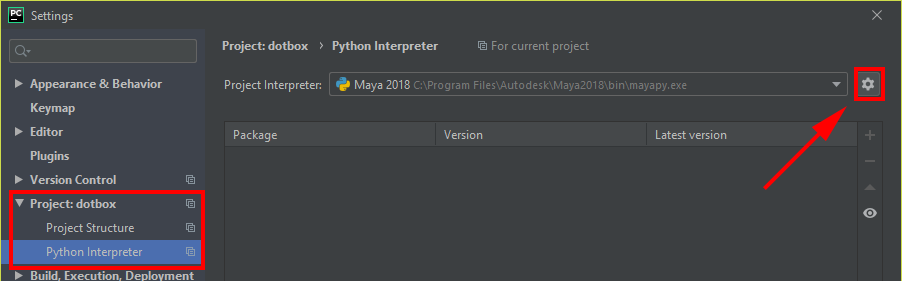
File->Settings->Project:{project name}->Project Interpreter - Press the settings icon on the right and then press
Add...
Choose System Interpreter on the left and then hit the ... menu on the right.
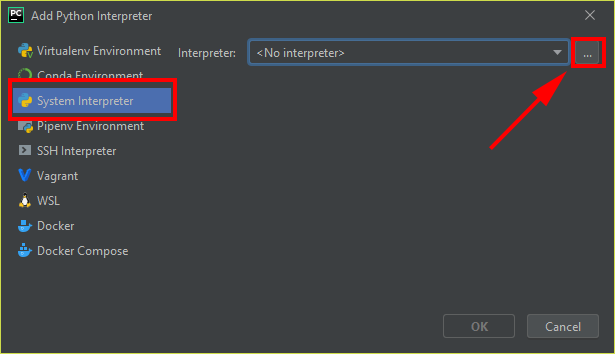
Navigate to MAYA_LOCATION/bin/mayapy
MAYA_LOCATIONis the install directory and can be found using this script in mayaimport os; print os.environ["MAYA_LOCATION"]
¶ Rename
To keep consistent when switching between systems, I rename the interpreter to Maya XXXX.
This prevents you from having to change your project interpreter (if you keep your .idea folder within your git repo).
-
Navigate to
File->Settings->Project:{project name}->Project Interpreter -
Press the settings icon on the right and then press
Show All...
-
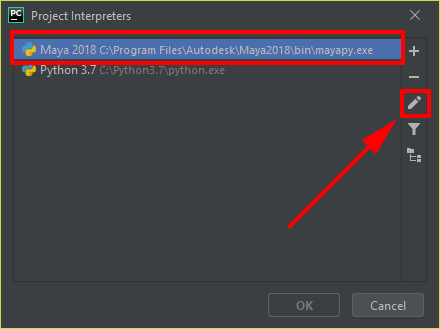
Click the interpreter that points to
MAYA_LOCATION/bin/mayapyand then press theediticon on the right
-
Rename to
Maya XXXX
¶ Auto Complete
¶ Stubs
Download maya's devkit from Autodeks Developer Network. Scroll to the bottom and choose which version. (The OS doesnt matter if youre not developing c++)
We only care about devkitBase/devkit/other/pymel/extras/completion/py. (Yes this is for maya cmds)
The devkit has a hefty file size. If you do not care about the c++ stuff you can delete everything except the
devkitfolder.
You can also go as far down as to thepyfolder. (I keep these stubs in a repo so i can cary them around easier)
If we leave the py folder as is, and you use the built in Python Console you will get issues when importing maya.cmds. To avoid this I rename the .py files to .pyi and the folder to pyi as well for consistency. (This is a stub format PyCharm is happy with)
Using this script:
ROOT = r"devkitBase/devkit/other/pymel/extras/completion/py"
for root, directories, files in os.walk(ROOT):
    for f in files:
        if not f.endswith(".py"):
            continue
        path = os.path.join(root, f)
        os.rename(path, path.replace(".py", ".pyi"))
¶ Add to interpreter
-
Navigate to
File->Settings->Project:{project name}->Project Interpreter -
Press the settings icon on the right and then press
Show All...
-
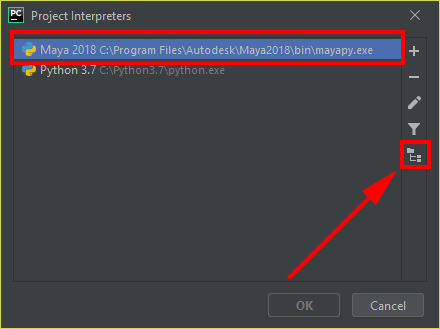
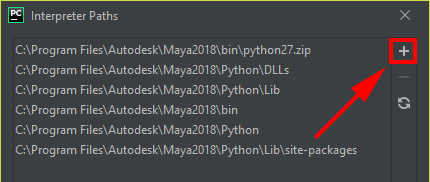
Select your intepreter and press the paths icon
-
Then add the
devkitBase/devkit/other/pymel/extras/completion/pyby pressing the add icon on the right
-
Hit
Okon all the dialogs and you should seeGenerating Skeletonsprocess on the bottom. Once thats done you should have autocompletion.
¶ Help Docs
PyCharm has a feature that lets you open the documentation within a browser. This allows you to pres shift + F1 (on windows/linux) with the cursor on the function.
-
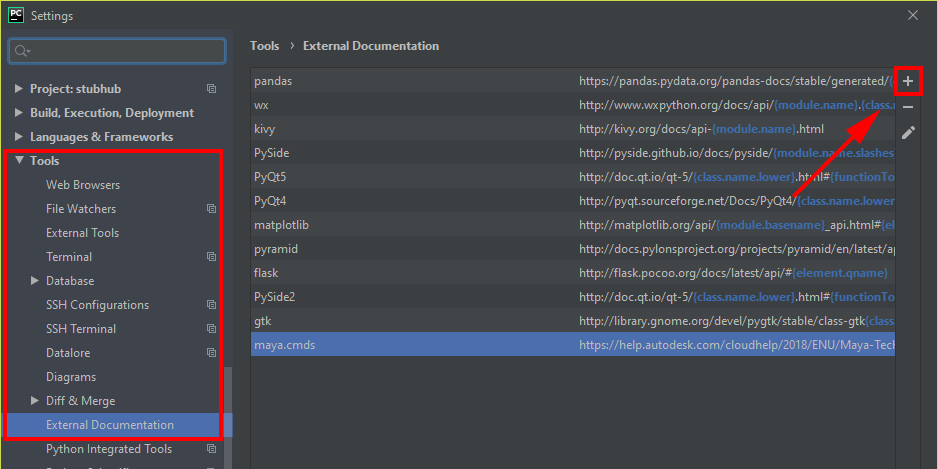
Navigate to
File->Settings->Tools->External Documentation -
Press the add icon
-
Module Name:
maya.cmds
URL:https://help.autodesk.com/cloudhelp/2018/ENU/Maya-Tech-Docs/CommandsPython/{function.name}.html